
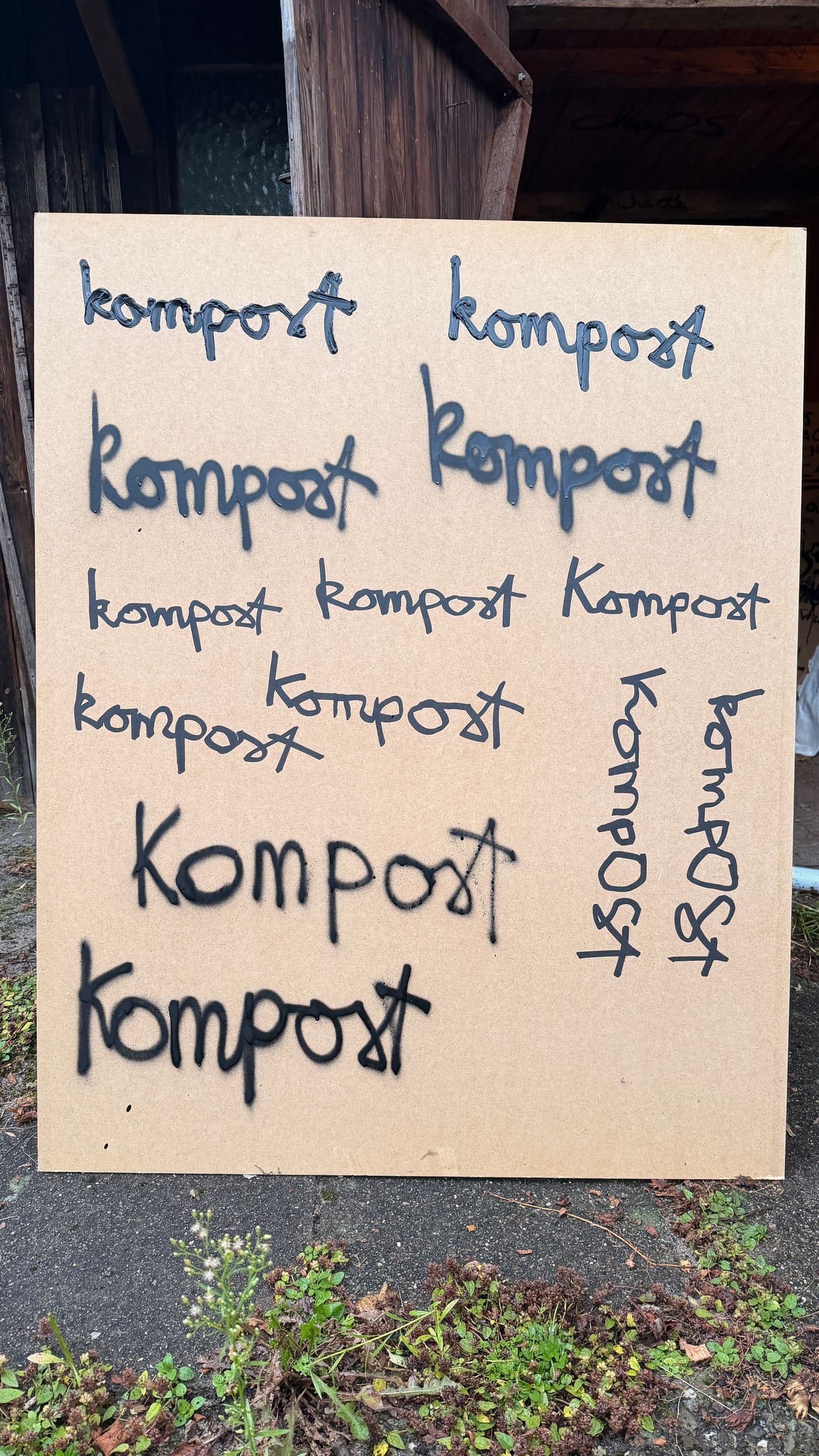
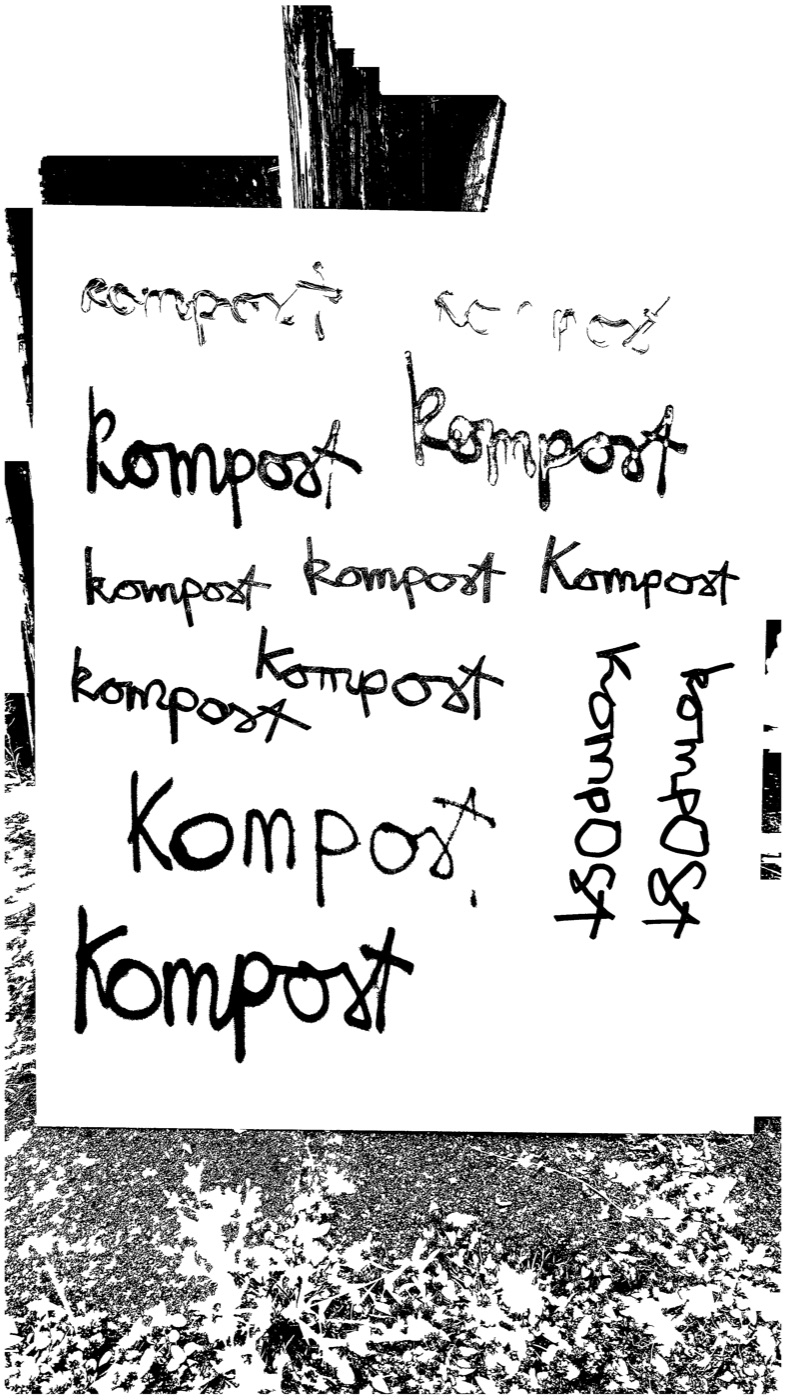
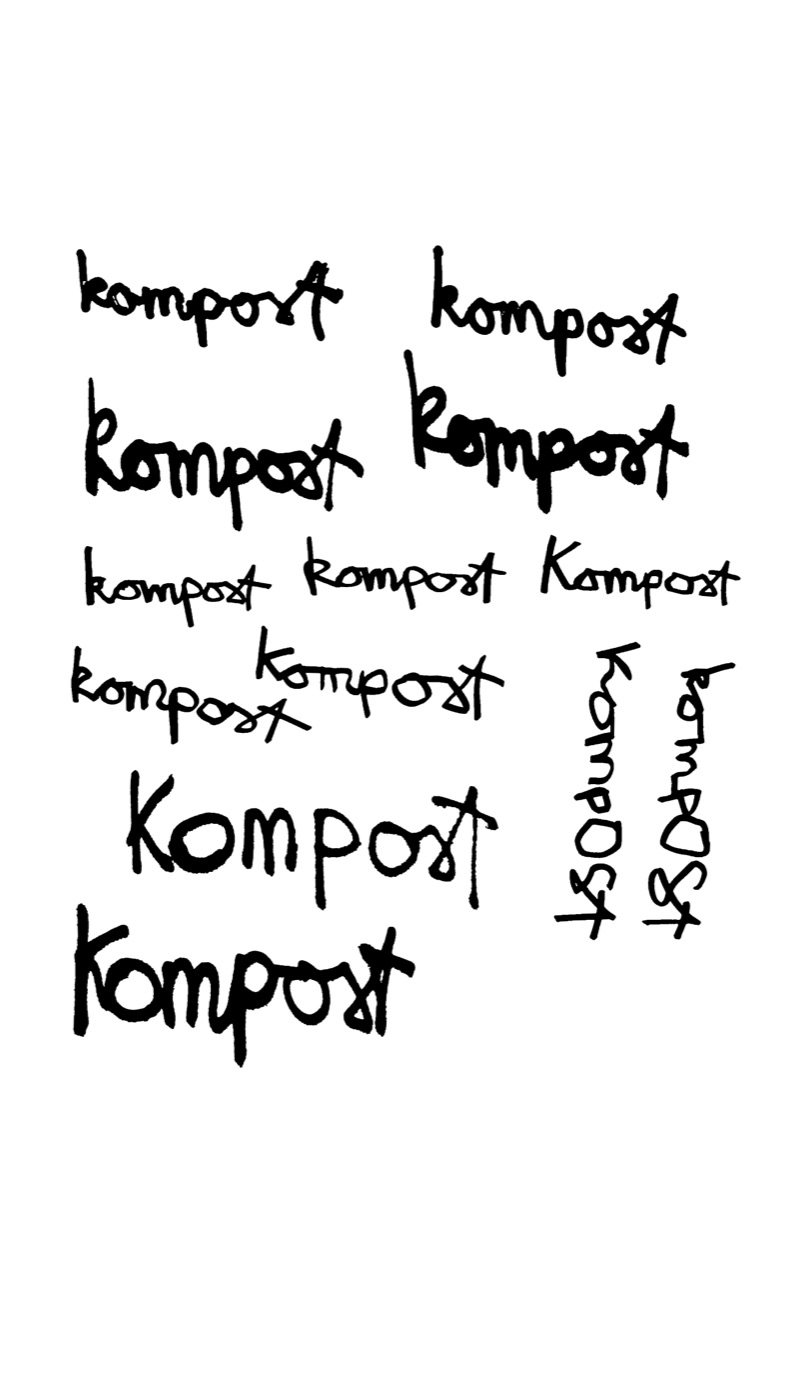
Black is the information.
For one-colour screen printing, the film determines which areas expose and print. The motif therefore needs a clearly defined, opaque black shape.
Vector Boy works for line art, type, logos and existing raster illustrations. It does not create a controlled halftone screen for photographs.
Suitable source material
- Black areas should be fully opaque
- Small white counters must stay open
- Remove marks outside the motif
- Judge detail at final print size
Step by step.
- Load the image and begin in result view.
- Adjust black level, contrast and brightness until all intended lines are present.
- Remove isolated marks or unwanted regions with the cleanup option or lasso.
- Open vector view and inspect outer contours, counters and narrow gaps.
- Smooth only visible raster steps and simplify Bézier curves conservatively.
- Export the format that fits your next production step.
Confirm film density, mirroring, minimum line width and screen specification with the print shop.
Choose the right export.
PDF is useful for controlled print output, SVG for modern design and production software, EPS for traditional workflows, DXF for contour-based CAD and laser processes, and PNG for the cleaned raster result.
Frequently asked questions
Can Vector Boy halftone a photo?
No. It creates a hard black-and-white separation. Controlled halftones need dedicated prepress software.
Why are small holes closing?
Black level or smoothing may be too high. Inspect counters in vector view.